An item can be assigned zero or more dates. A date can be:
- A scheduled date - the item will be shown on that date in the agenda, and should be started.
- A deadline date - similar to scheduled but indicates a hard deadline for completion.
- A show on/active date - that is the item will show in the agenda on that date, but won’t be shown as overdue if that date passes and it is still marked as TODO.
It is often useful to set both a scheduled and deadline date for an item which is a multi-day project.
By default a headline is considered overdue if not in a done state and the scheduled date is in the past. This can be changed by setting the Scheme variable
org-overdue-includes-scheduledto#f.
In addition to an item being assigned a specific day it can also be given a time.
The date and time editor allows you to quickly set a date to today or tomorrow, and to move forward or backwards in increments of 1 or 7 days at a time. At the top of the date dialog you can see how many days in the past or future the date is and which day, for example Monday, it is.
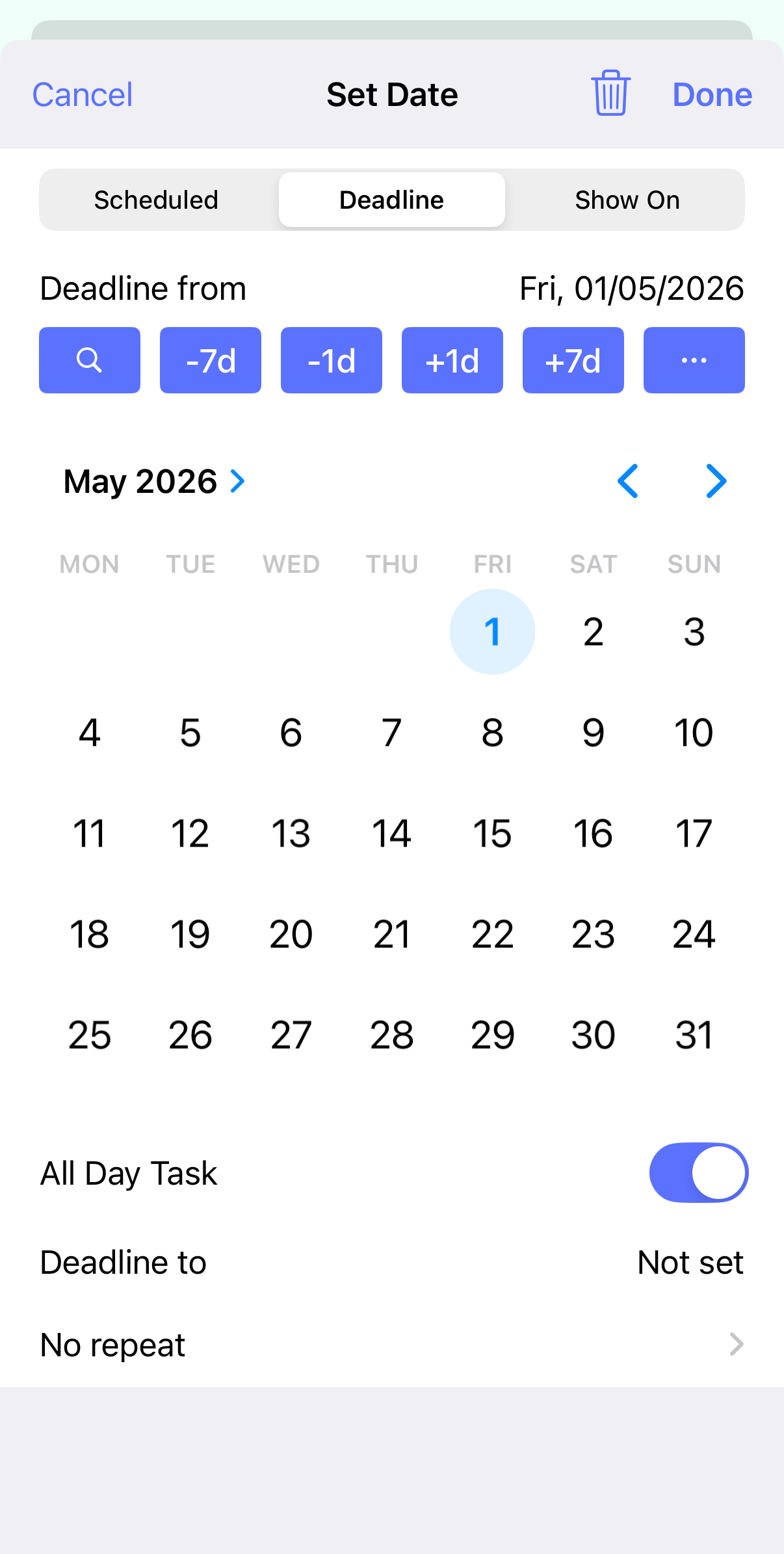
To add or remove a time to a date toggle the All Day Task switch.
To remove a date, for example if you’ve decided not to have a scheduled date now and just a deadline, tap the trash can icon.
If required you can set an end date/time. Tap the scheduled/deadline/show to option, and you’ll be able to select an end date.
Repeated dates
There are times when its useful to have an item which automatically repeats. beorg supports repeating an item after a certain number of days, weeks, months or years. Here are some examples of repeated tasks:
- Putting out the general garbage every week on a Tuesday
- Having the recycling collected every two weeks on a Tuesday
- Checking a website once a week
When a repeated task is marked as done beorg will change the date to when it should next be completed. You can tell beorg to update the date in one of the following ways:
- To the assigned date plus the repeat interval. For example if a weekly task appeared in your agenda on Tuesday but you didn’t complete until Thursday then the new date will be the next Tuesday.
- To the assigned date plus the repeat interval, making sure the date is in the future. You may have a task which is weeks overdue and is supposed to be completed on a weekly basis. When you do finally complete the task you don’t want just a week added to the assigned date as that will still be in the past.
- To today’s date plus the repeat interval. For some tasks it doesn’t make sense to add the repeat interval to the assigned date when you completed the task late. For example you may want to water a plant once a week on a Monday. If you forgot to water it until the Friday it makes sense for the next time to water to be the following Friday, not just in a few days time on Monday again.
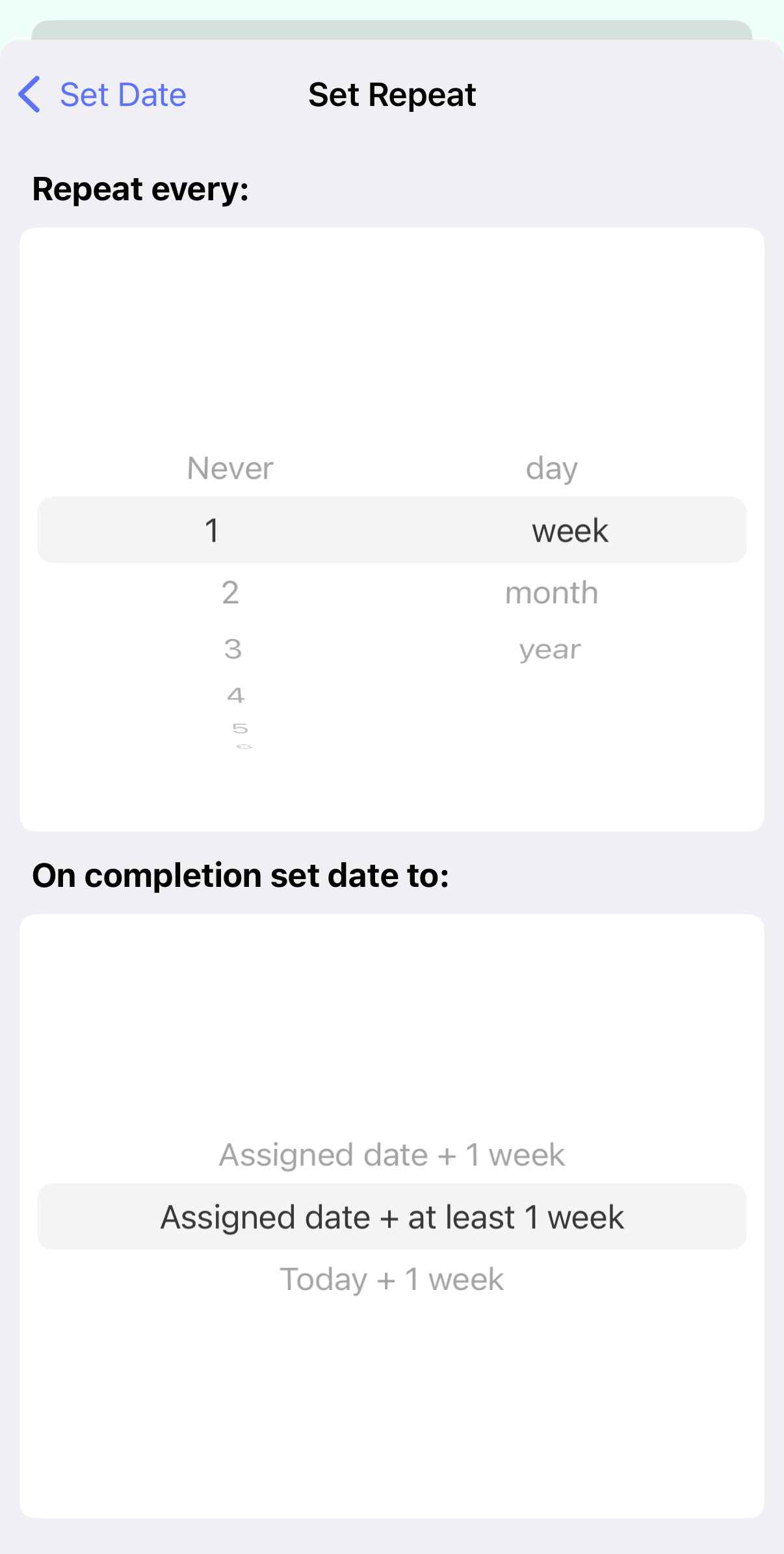
To set a date to repeat:
- Tap the Repeat… button at the bottom of the date dialog.
- Choose how often you want it to repeat. The first column allows you to choose a number (1, 2, 3, …) and the second whether this is in days, weeks, months or years.
- Select how the date should be updated when the task has been completed.
- Assigned date + n days/weeks/months/years: the date set + exactly the time interval specified (it may be in the past)
- Assigned date + at least n days/weeks/months/years: the date set + at least the time interval specified to ensure the date is in the future
- Today + n days/weeks/months/years
beorg does not currently support hourly repeats.