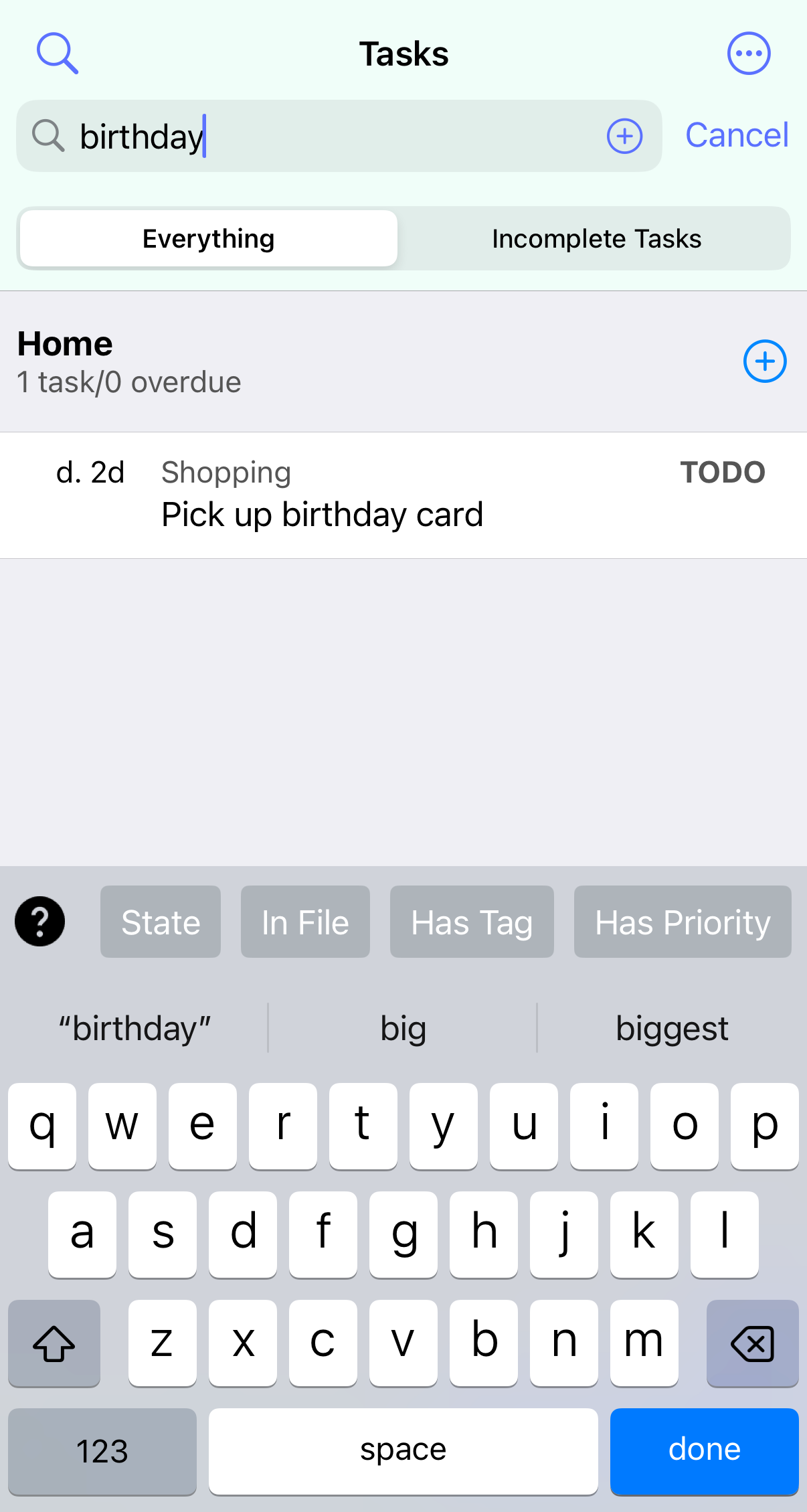
You can use Search from either the agenda, in which case it is limited to the current week being displayed, or from the TODO tab. Type some words to search for, or a phrase in double quotes, for example "sales meetings". To narrow down your search even more there is a simple syntax.
New syntax
As of beorg 3.39.0 there is a new search syntax. Any search that starts with a / will use this.
This new search syntax works against a database that beorg creates from your org files. Searches are therefore much faster as first the database is queried, and then the files with the matching headlines are loaded into memory. Previously each file was loaded, parsed and headlines matched.
Here is an example of a search:
/(state:TODO OR state:INPROGRESS)
AND (tag:project OR tag:epic)
AND NOT priority:C
The syntax includes the boolean operators AND, OR and NOT. You can also use parenthesis to help narrow down your search.
Search keywords
The following keywords are available:
state, e.g.state:TODOpriority, e.g.priority:Alevel, e.g.level:1matches top-level headlines onlytag, e.g.tag:shoppingitag:shopping(the headline’s ancestor has the tag shopping)ftag:shopping(the headline is in a file, which has the file tag shopping)prop, e.g.prop:author=dickensfile, e.g.file:inbox
If you need to use double-quotes to search for a phrase, or with a property keyword, for example prop:"author=charles dickens".
All searches are case-insensitive.
Searching by date
To match headlines by planning dates you can use the keywords scheduled, deadline or active. The keywords are then followed by a specification for the date to match. Here are some examples:
todayyesterday+3d- in 3 days time-4d- 4 days ago+3w- in 3 weeks time-1w- 1 week ago2026-04-12- 12th April 2026today..+1w- within the next week>today- after today<=yesterday- yesterday or earlier
For example scheduled:today..+1w would match headlines with a SCHEDULED date within the next week.
The new search syntax will only match the exact planning date, and won’t match any future dates implied by a repeater. This limitation may be addressed in the future.
Grouping
Grouping, the default is by file:
group:file- results should be grouped by filegroup:priority- by prioritygroup:tag- by taggroup:state- by state
You can only use
groupon the Tasks tab, and it can’t be used on its own.
Ordering
Ordering:
order:>date- ascending by dateorder:>deadline- ascending by deadlineorder:>scheduled- ascending by scheduledorder:>showon- ascending by show on or active dateorder:>file- ascending alphabetically by fileorder:>headline- ascending alphabetically by headlineorder:>priority- by priority, with the most urgent first (A)order:>state- by state
You can change the > to < for a descending search.
ordercan’t be used on its own.
Legacy syntax
Syntax overview
| Example | Description |
|---|---|
f inbox |
Only search in the file inbox.org. You can specify multiple files, for example f file1 f file2 f file3 |
s todo |
Must have the state TODO. You can specify multiple states, for example s todo s waiting |
t shopping |
Must contain the tag Shopping. You can specify multiple tags, for example t shopping t food |
p a |
Must be of priority #A. You can specify multiple priorities, for example p a p b |
d 7 |
Any date assigned to an item must be within 7 days of today |
o |
A task is overdue |
n iphone |
The notes must contain the text iphone |
r author dickens |
The property author must be equal to dickens, case insensitive on both property name and value |
k |
Must be an incomplete task, for example in a TODO state |
For more advanced use you can write your search in Scheme.
Search basics
Search allows you to filter your agenda or search for specific items on the TODO tab. You can enter text and it will be used to match items which have that text in their headlines. For example entering day would match items with the headlines Sunday tasks and Day 3 but not the headline Christmas shopping.
You enter multiple search terms, all of which must be matched for an item to be shown. For example one two would match items One and two verse songs and Three two one counting practice.
If you want to match a phrase then surround it in double quotes. For example "one two" would match One two three but not two one.
More advanced searches
Some single characters have special meanings in searches. A list of these is at the top of this help. You can use these to narrow down your search to a particular file, tasks with a certain state, tasks which have certain tags, priorities and dates that are within a certain number of days time.
Here is an example which searches items that have the state WAITING and the tags callback and important:
s waiting t callback t important
Here is another example which just shows items from the files family, exercise and cooking:
f family f exercise f cooking
Saved searches
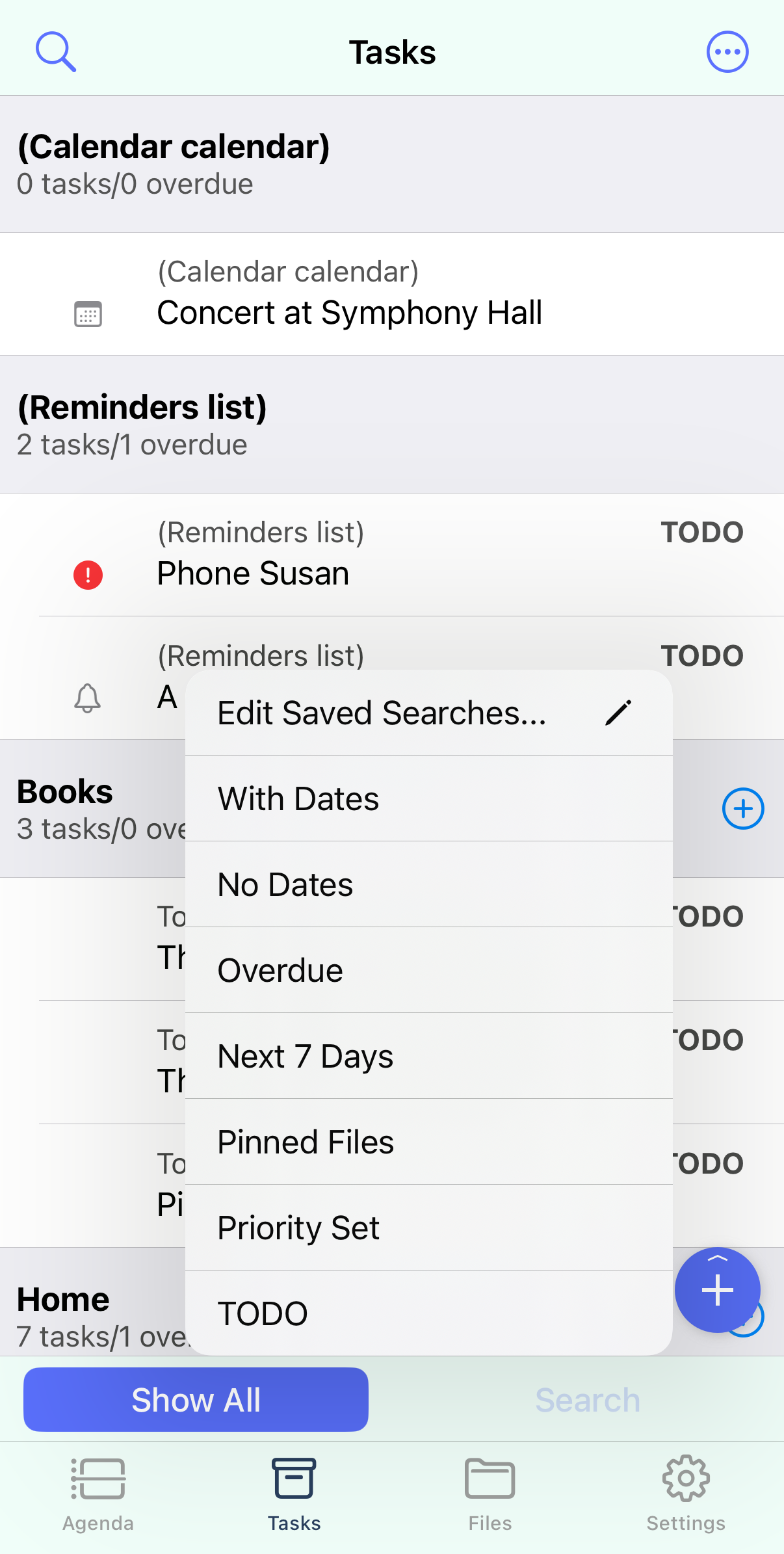
If you have a TODO tab search used frequently then you can save that search and then access it in the future from the bottom toolbar. Make sure the keyboard isn’t visible, by tapping the Done button on the keyboard, and then a bookmark button will appear in the search bar. Tap this and then tap the + button in the top right. You will then be prompted to provide a name for your search. To remove a search swipe from right to left on a search and tap Delete.
Saved searches is available as an in-app purchase for a small one off cost from the beorg extension manager. Your saved searches will be synced across your devices using iCloud.
Searches using Scheme
If a search starts with ( and ends with ) then it will be interpreted as a Scheme expression that should return true or false. The expression will have access to the variable item representing the item being checked.
For example:
(string=? (item-headline item) "Meeting")
This will match any items with the headline Meeting.
There are some helper functions defined in library.org to easily look up information from an item:
| Scheme function | Description |
|---|---|
item-file |
the name of the file which the Org task is contained in, for example inbox.org |
item-headline |
the headline of the item, that is the task title |
item-state |
e.g. TODO, DONE |
item-priority |
the priority of the item |
item-tags |
any tags assigned to the item |
item-scheduled |
the scheduled date for the item. If there is no scheduled date then this will be #f |
item-deadline |
the deadline date for the item. If there is no deadline date then this will be #f |
item-active-date |
the active or show on date for the item. If there is no active date then this will be #f |
item-overdue |
#t if the item is overdue |
item-properties |
a list of association lists of properties in this item’s property drawer |
item-property |
provide the property name to get back the string value |
You should note that whilst non-Scheme searches are case insensitive you’ll need to handle that yourself. string-upcase and string-downcase will prove useful.