What are templates?
✨ You can create two templates for free. If you need more than two templates then you will need to purchase the Templates extension in-app purchase.
You may find yourself wanting to speed up adding certain types of items in beorg - daily reviews, keeping a journal, adding tasks for completion tomorrow.
beorg gives you the ability to create templates. A template defines one or more of the following:
- The file you want the new item to be saved to
- Whether to add the new item to the start of the file, or default to adding to the end
- The initial todo state of the item
- A priority
- When the item should be scheduled for
- A deadline
- A show on date
- Tags that should be applied
- A title or headline for the item
- Notes
- Where in an outline the item should be added
- The UI elements to show when using the template
This will become clearer with an example. Let’s say you want to review your day. An item containing a daily review may need the following:
- Be added to a daily-reviews file
- A title containing today’s date - e.g.
Daily Review [2019-03-06 Wed] - Tagged with
DailyReview - The show on date set to today
- Some initial notes to prompt you with your daily review
- Be added under a year and month in the outline to stop the file from getting cluttered
Managing templates
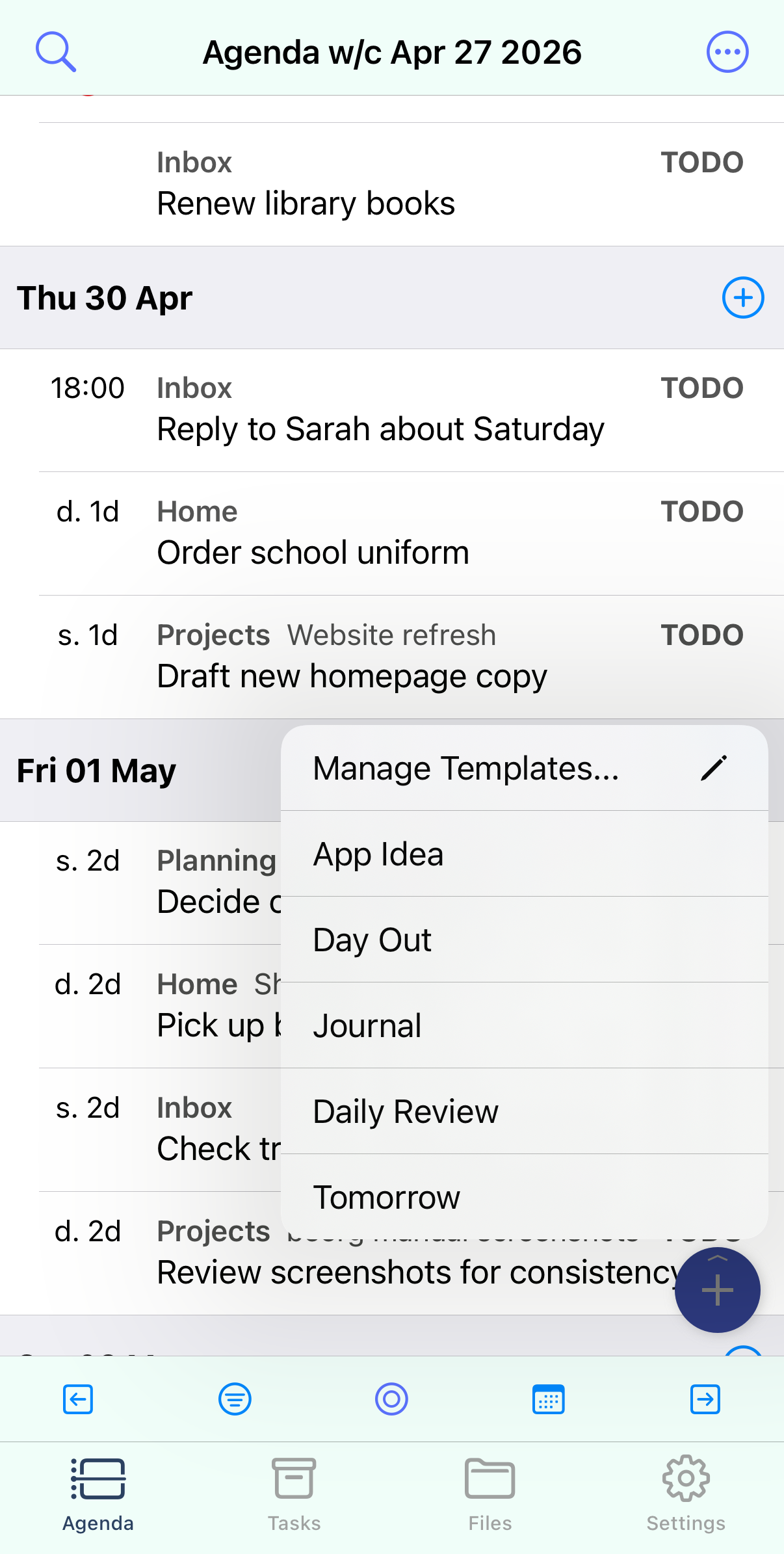
To add a new template:
- Long-press the + button which appears on the Agenda, Tasks and Files tab
- Tap Manage Templates…
- Tap the + button, top right, to start creating your template
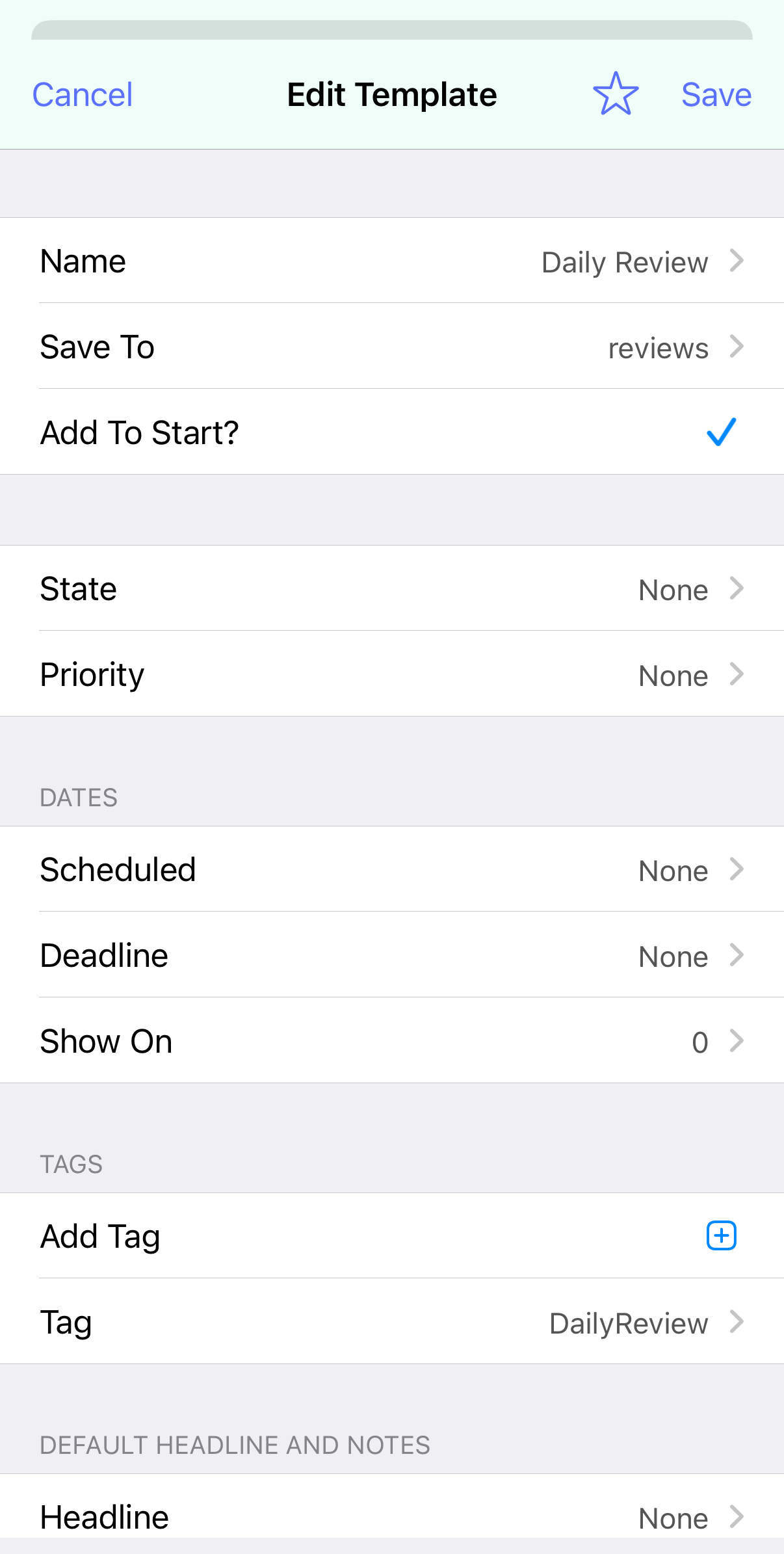
If you want to delete a template, long-press the template and select Delete. You can also duplicate a template from this menu.
To reorder templates hold down your finger on a template until you have picked it up and then drag to the desired position.
Basic details
A template needs a descriptive name - for example Journal Entry or Daily Review.
If you don’t specify a file to save to then the current quick capture file will be used.
You can optionally specify a default state and priority to assign to a new item using the template.
Specifying dates
Dates, meaning scheduled, deadline and show on, use a simple syntax to define a date relative to the current date and time.
As a minimum a number of days from today needs to be provided, with 0 being today. You can also provide a unit - h (hours), d (days), w (weeks), m (months) and y (years). For example setting scheduled to 1d or 1, as the d for day is implicit if no unit is provided, will schedule the item for tomorrow.
Following the number of days, or hours, weeks, months or years, is optionally a t signifying that the time should be included. If you are setting a relative number of hours then the t is implied. For example 2dt is two days from today at the time the new item is created, so if today was 23rd January at 09:30 then 2dt would be 25th January at 09:30.
If you’ve specified t so that a time is included then you can also set an absolute time. For example 1dt1300 is tomorrow at 1pm, 13:00 in 24-hour time.
A toolbar above the keyboard has common scenarios clearly labelled so the majority of the time the syntax doesn’t need to be manually typed.
Tags
You can specify any number of tags which will be applied to the new item. Each tag must be listed separately. There is no need for the tag to have been previously used.
Headline and notes
The headline and notes can make use of macros. Macros are used primarily to insert the current date and or time in a format of your choosing. For example %year% %monthshort% %day% would insert 2019 Mar 06 if it was currently the 6th March 2019.
The following macros are available:
| Macro | Description | Example output |
|---|---|---|
%today% |
Date, without time, in Org format | 2019-03-23 |
%now% |
Date, with time, in Org format | 2019-03-23 13:21 |
%year% |
Current 4 digit year | 2019 |
%month% |
Current 2 digit month | 03 |
%monthshort% |
Current short month name | Mar |
%monthlong% |
Current month name | March |
%week% |
Current week number | 17 |
%day% |
Current 2 digit day in month | 23 |
%dayshort% |
Current short day name | Wed |
%daylong% |
Current day name | Wednesday |
%hour% |
Current hour (24-hour) | 13 |
%minute% |
Current minute | 30 |
If you find that the above macros are not sufficient then you can call Scheme functions. Some examples of macros making use of Scheme functions:
| Example macro | Description | Example output |
|---|---|---|
%(date-week-day (current-date))% |
Number of day in week | 3 |
%(date->string (current-date) "~y")% |
2 digit year | 19 |
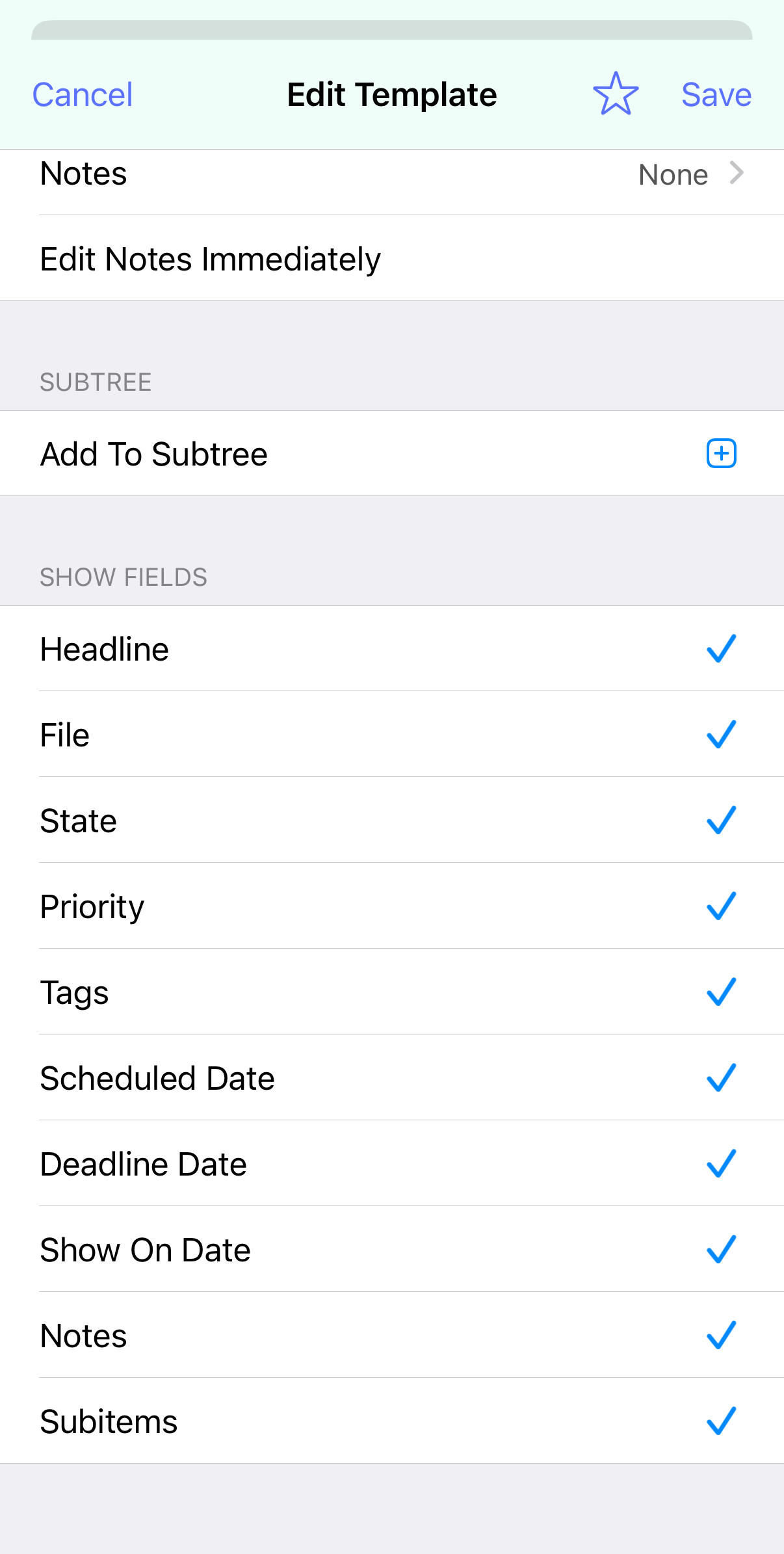
If Edit Notes Immediately is checked then when you create a new item using the template you’ll be shown the notes editor automatically. This is useful if you are unlikely to want to edit the pre-filled headline or title.
Subtree
All beorg files are outlines - that is you can nest items inside each other to whatever level you find useful. For example a journal might have the following structure:
* 2019
  * January
     * 2019-01-05 Saturday
       Journal entry contents...
     * 2019-01-07 Monday
       Journal entry contents...
  * February
    * 2019-02-07 Thursday
      Journal entry contents...
At the top level is the year, then nested under the year is each month which has journal entries and then come the journal entries organised by month.
By adding items to the Subtree section in the template editor you can tell beorg where you want a new item to be added. You can use the same macros described above if you want to file items by date. Please note that items are always added at the end, which is usually what you want. If beorg doesn’t match the elements in a subtree they will be created.
Show Fields
You can customize which parts of the item editor are shown when creating a new headline.