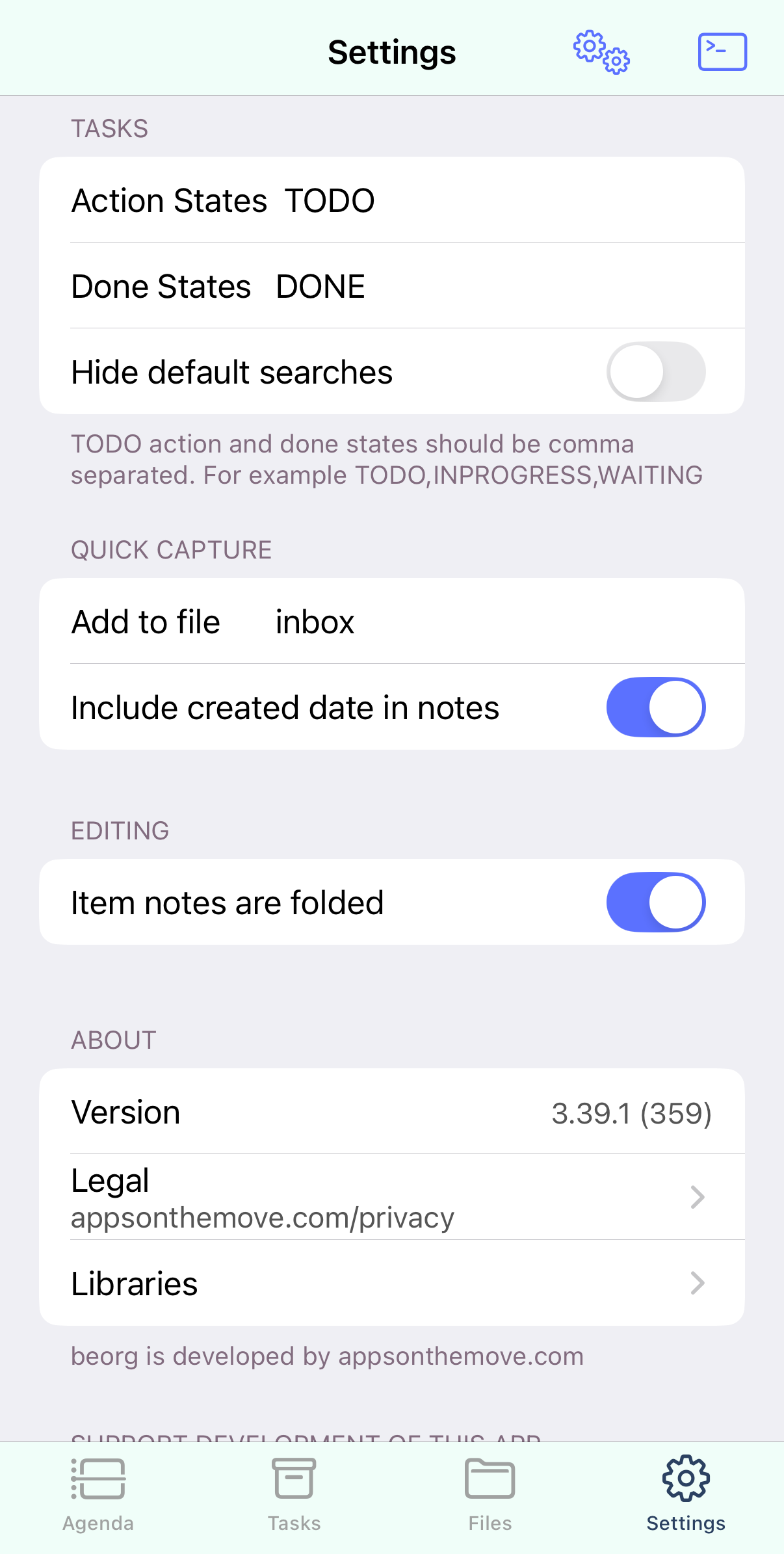
beorg uses a tab bar to provide access to the main sections of the app. You can quickly switch between the tabs Agenda, Tasks, Files and Settings.
You can enable a Notes tab if you have “Sync subfolders” enabled.
The Agenda
The agenda is the screen shown when beorg starts. It shows the tasks for each day in the current week.
Agenda tasks
The agenda shows tasks from your .org files, calendar and Reminders.
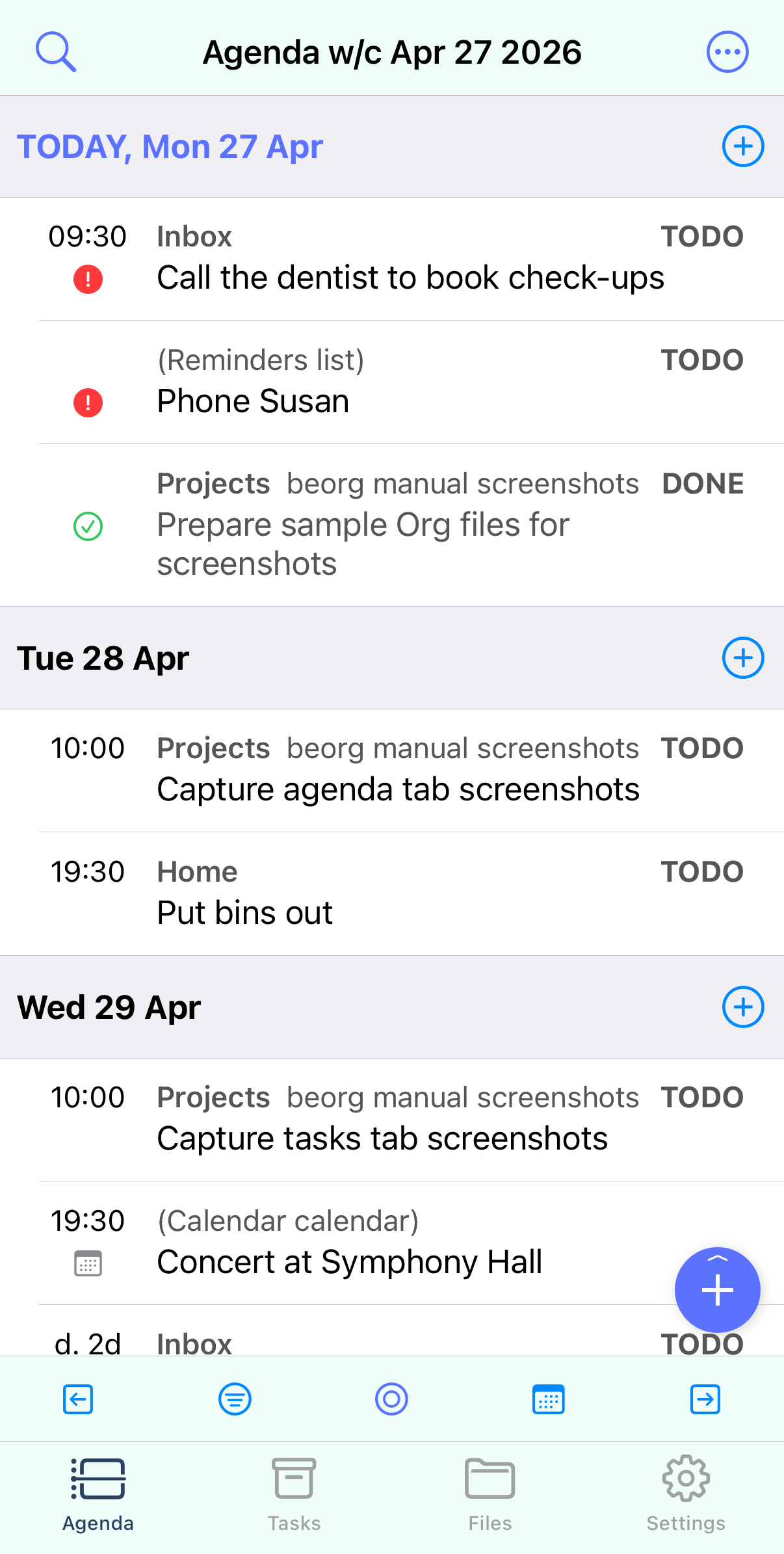
For items from your .org files tap to open the item editor. Calendar and reminder entries can also be tapped to view more details or make changes.
Long-press a task to see the item menu.
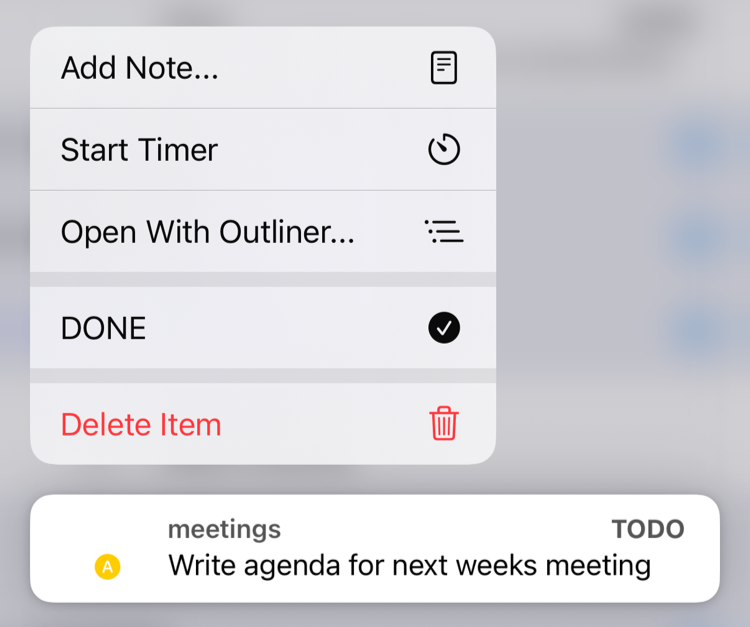
The item menu has the following sections:
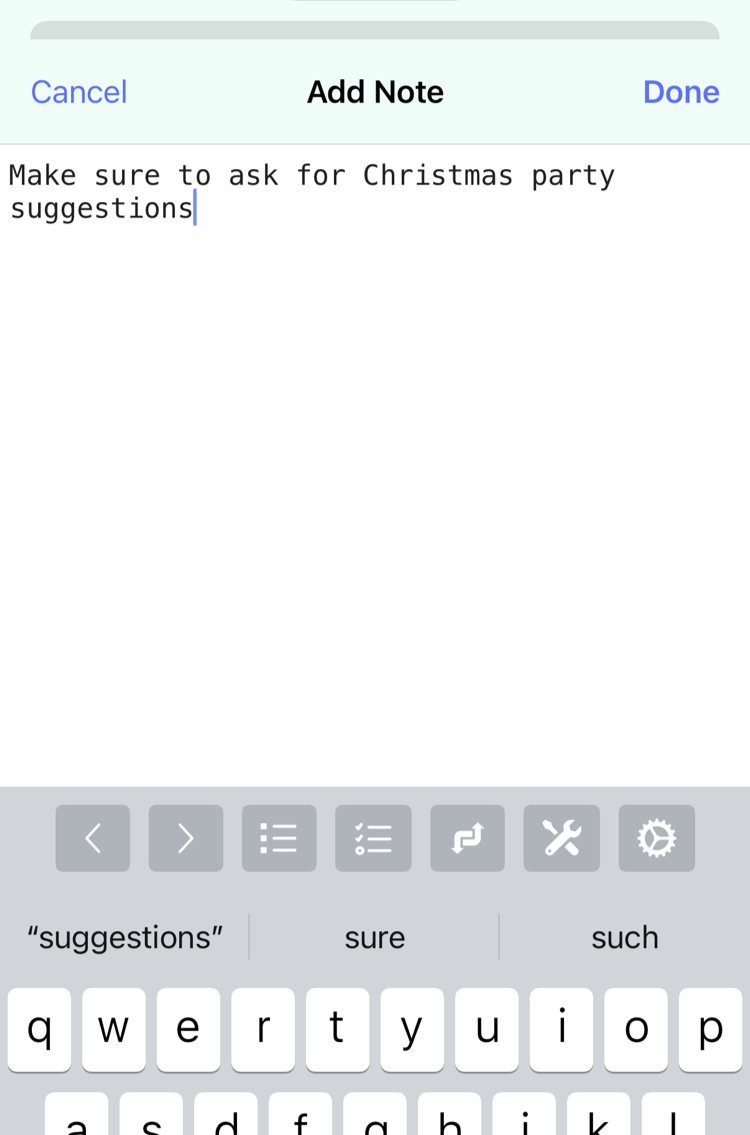
- Add Note… - add a short note to the item. You won’t see any existing notes when using this feature, so you can focus on what you need to add.
- Start Timer - start timing against the following item. You’ll need to have purchased the Timers extension to use this.
- Open With Outliner… - see the task in the outline editor.
- Change the state of the item - e.g. set to TODO or DONE.
- Delete Item - delete the selected item. This action cannot be undone.
You can also swipe from left to right to view a .org task in the outline editor.
Agenda top navigation bar actions
At the top of the agenda tab is a menu button. This shows the following actions:
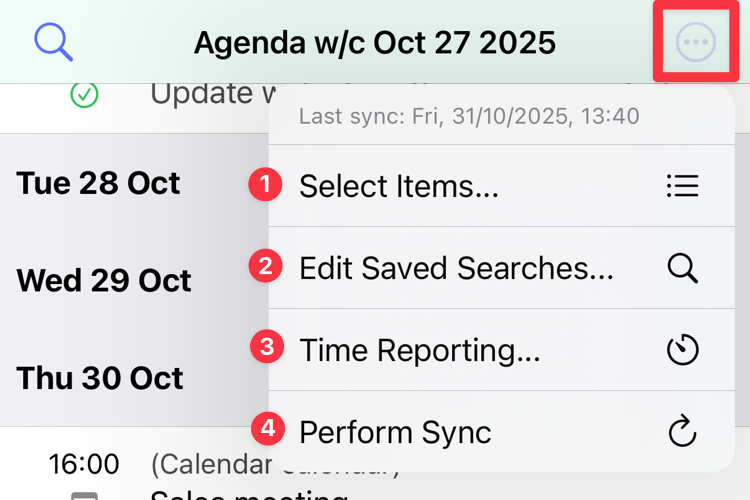
- Select Items… - use this to select multiple tasks to perform bulk edit operations
- Edit Saved Searches… - view and edit the agenda saved searches
- Time Reporting… - view a breakdown of the time spent on the tasks visible currently on the agenda
- Perform Sync - sync your files with the cloud
At the top of the menu is shown the last time a successful file sync was performed.
Agenda bottom toolbar actions
At the bottom of the agenda tab there is a toolbar with the following buttons:
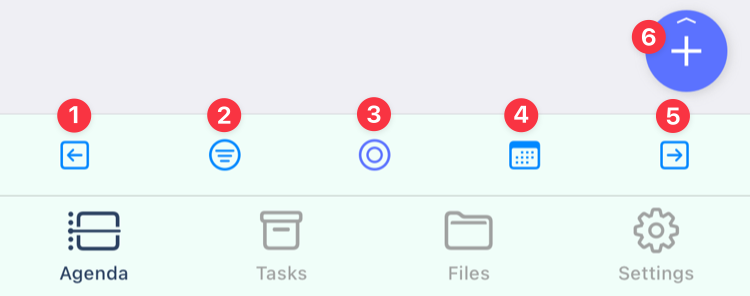
- Go to the previous week
- Show the agenda filters
- Go to today
- Show the date picker, to go to a specific date
- Go to the next week
- Tap to Quick Capture a new task, or long-press to show the templates menu
Tasks
The Tasks tab lists each org file and the items in that file. Also included are upcoming calendar events, and incomplete reminders (if you’ve given access to the Calendar and Reminders). By default it shows tasks (that is an item with a state such as TODO), including ones without dates. A summary is shown of the number of tasks and how many are overdue.
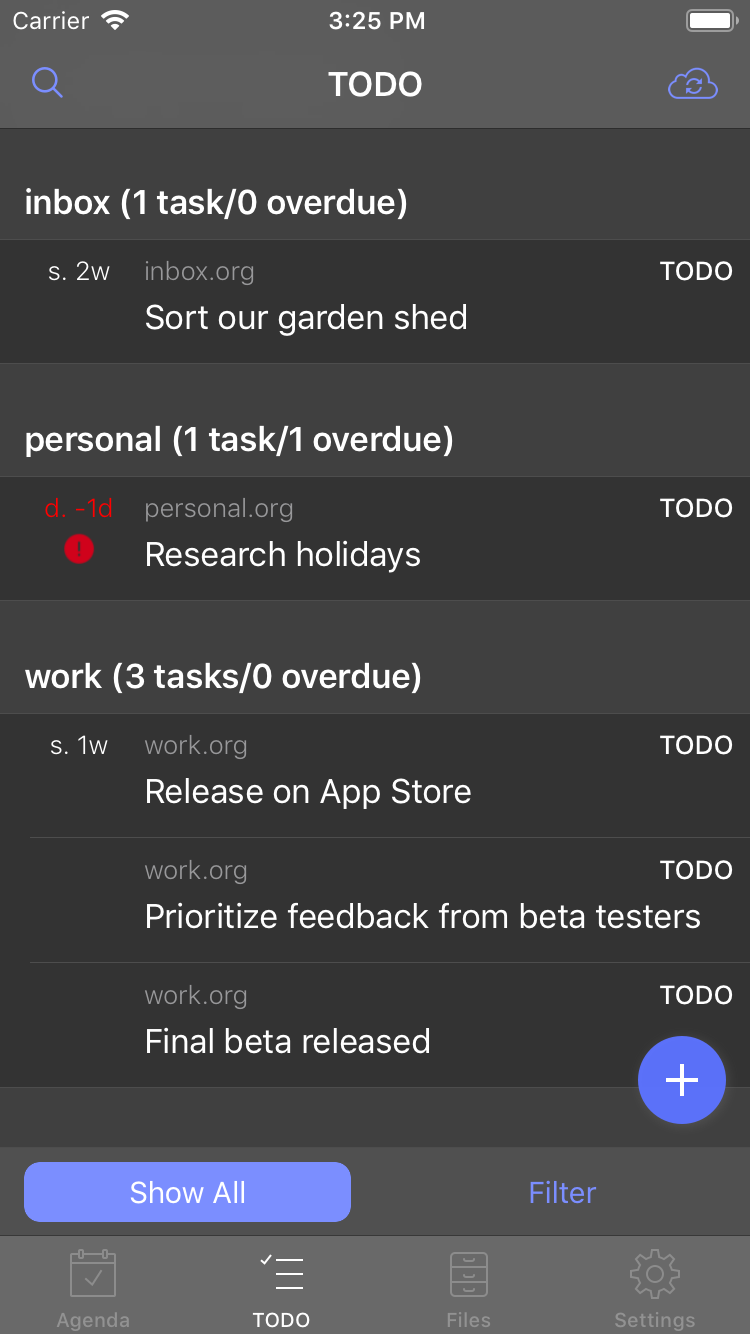
The same actions on each item that are available on the Agenda tab are available on the Tasks tab.
At the bottom of the Tasks tab is a toggle between showing all incomplete tasks or choosing from a filter.
- Tap the button on the left Show All to see all incomplete tasks
- Tap the button on the right to switch to the last used search, or show the list of available searches. You can also long-press this button to show the list of available searches.
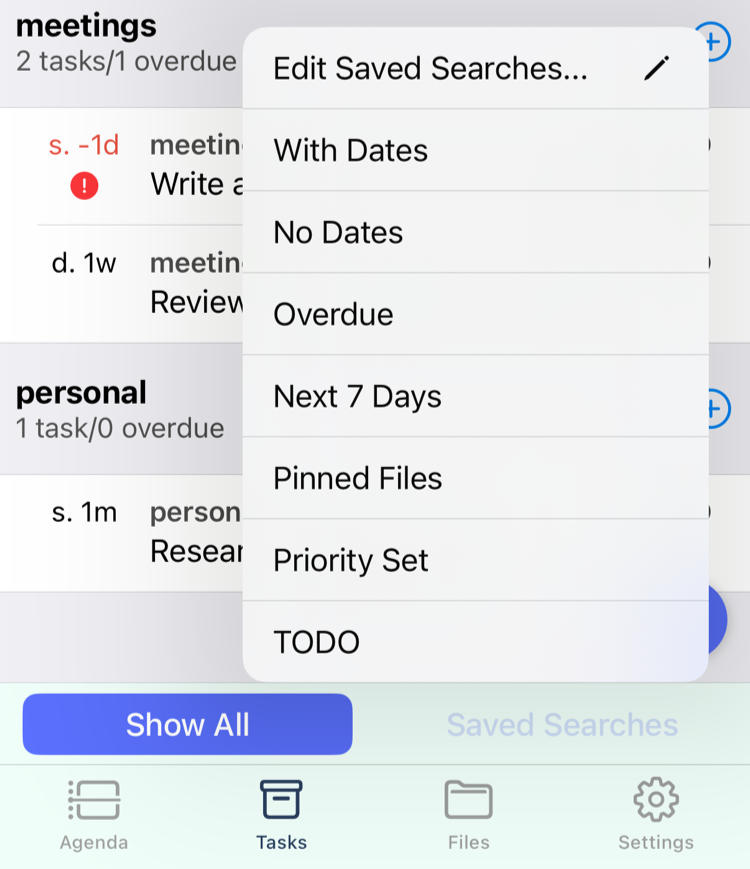
If you’ve activated the Saved Searches extension then any saved searches, in addition to the default searches, will also appear in the filter list.
You can turn off the default searches on the Settings tab.
Files
Files is split into two sections. At the top are your pinned files. Next are all the files in beorg.
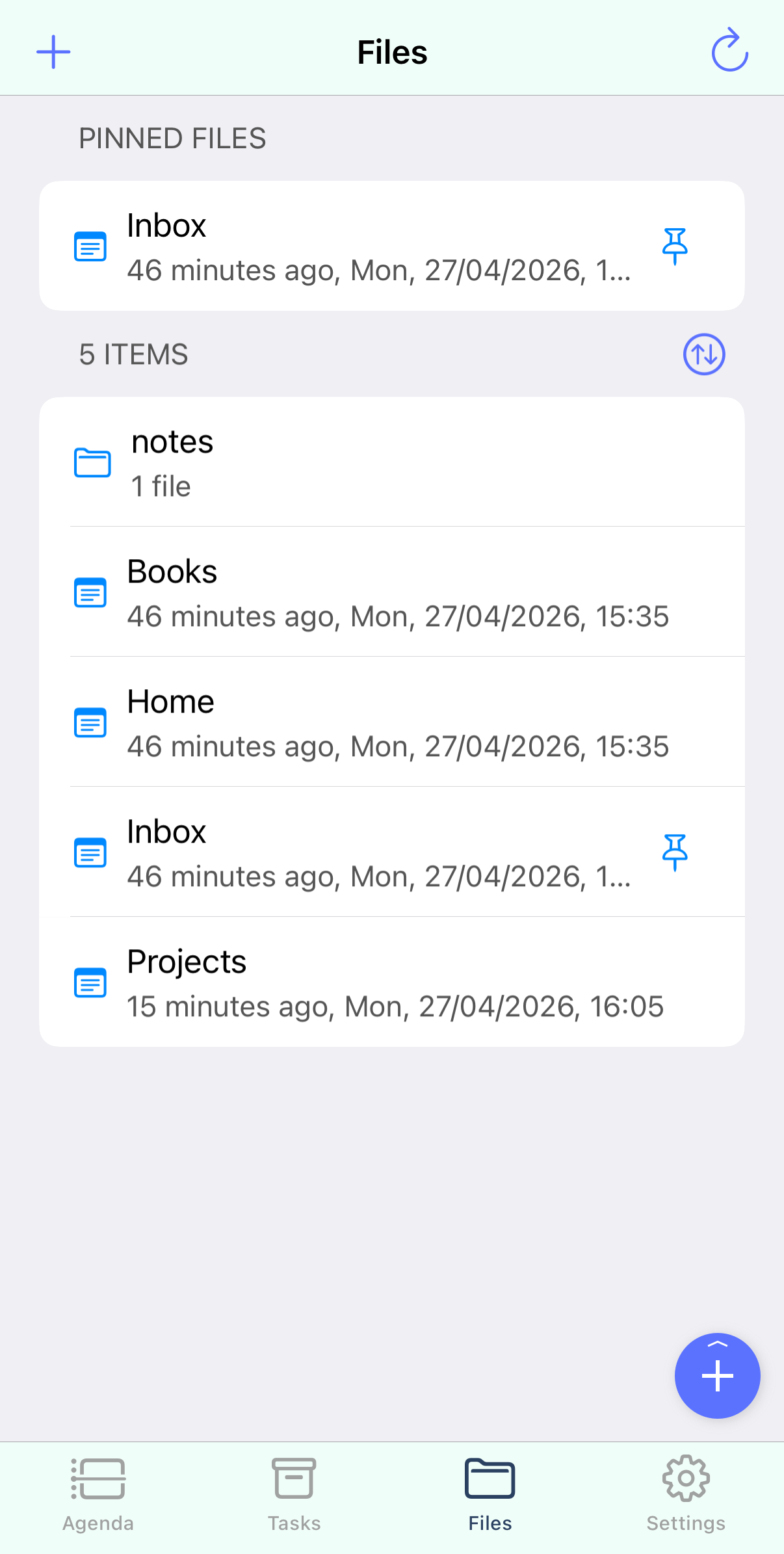
Long press a file to get access to the following options:
- Pin - this adds a file to the pinned files section at the top
- Rename - give a new name to this file
- Versions - beorg stores up to 7 days of different versions of files. You can view or restore any versions beorg has saved
- Delete - remove this file locally and from the remote
- Open With Item Editor… - view the file as if it was an item. You can provide a display name for a file using this
- Open With Outliner… - show an outline representing the file contents
- Open With Text Editor… - view the file as plain text
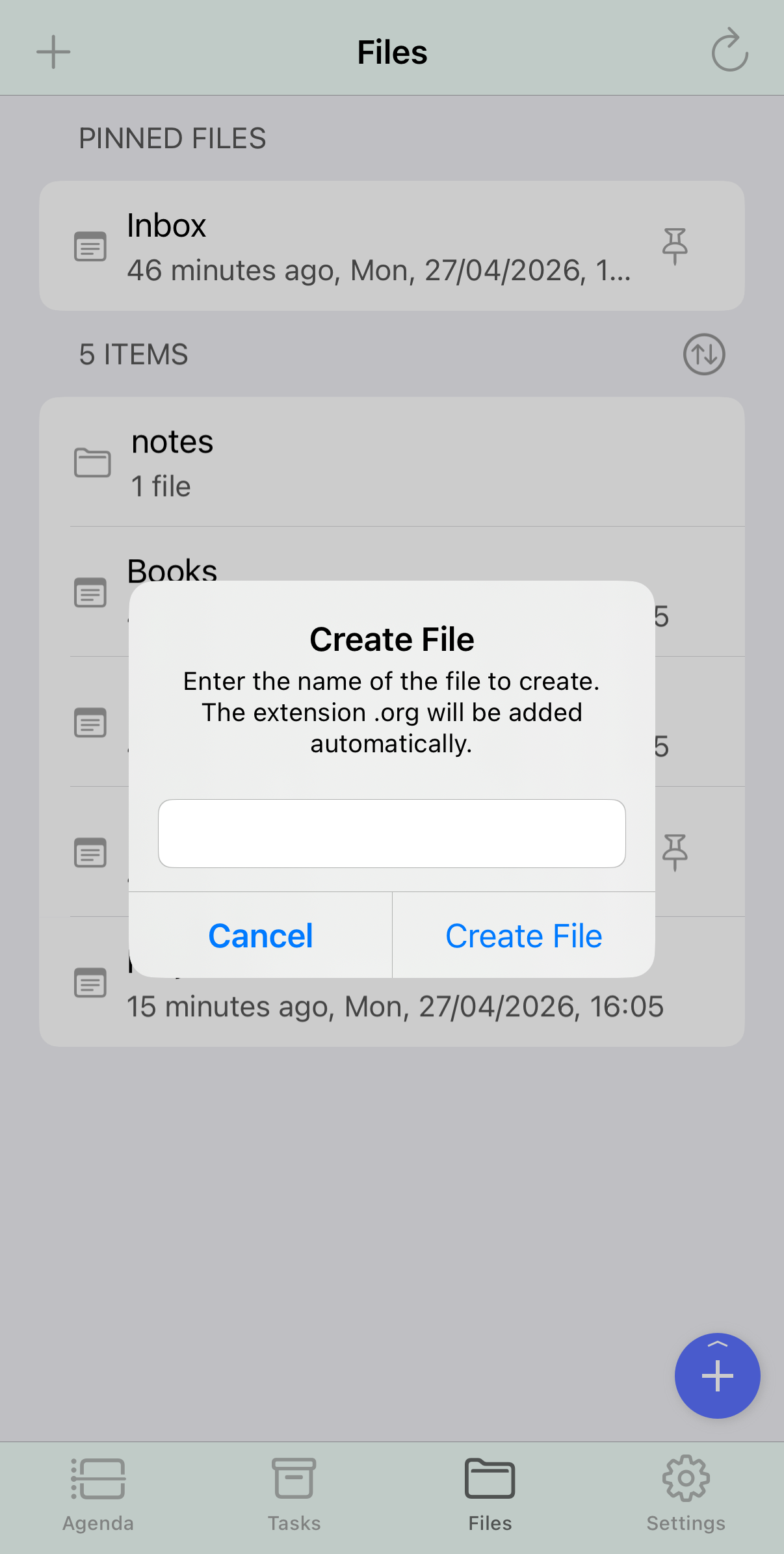
You can add a new file by tapping the add button on the navigation bar at the top of the screen.
Settings
The Settings tab allows you to setup beorg.
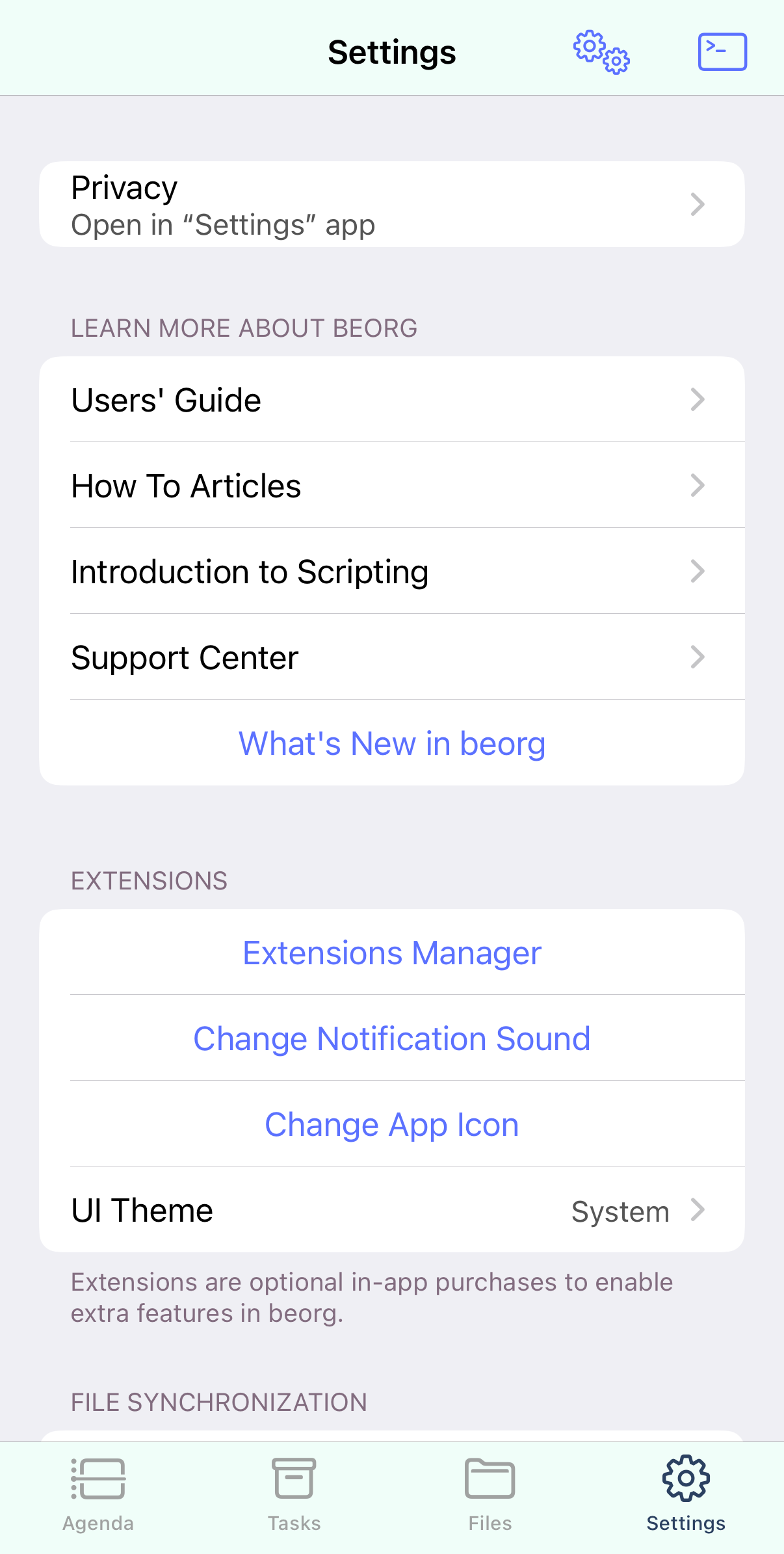
There are sections for:
- EXTENSIONS - this is to managed beorg Premium or individually purchased extensions.
- FILE SYNCHRONIZATION - setup how beorg syncs your .org files with cloud services or folders on your device.
- NOTIFICATIONS - whether you should get notifications for all day tasks, at what time and how long before tasks with times should you be notified.
- CALENDAR AND REMINDERS - provide beorg with permission if you want to see calendar and reminder entries in your beorg agenda.
- TASKS - specify the states you want to use for open tasks and completed tasks.
- QUICK CAPTURE - which file should new tasks be captured to.
- EDITING - in the outliner should notes be shown by default.
- ABOUT - see the version of beorg you are using.
- SUPPORT DEVELOPMENT OF THIS APP - if you want to help financially support beorg you can leave a tip.
- DEBUG - if you are having problems with beorg you may be asked to provide some of the debug log. You can also reset the internal database beorg creates of your .org files, and reset all synced files (sometimes useful if you are travelling).
Synchronization of your files
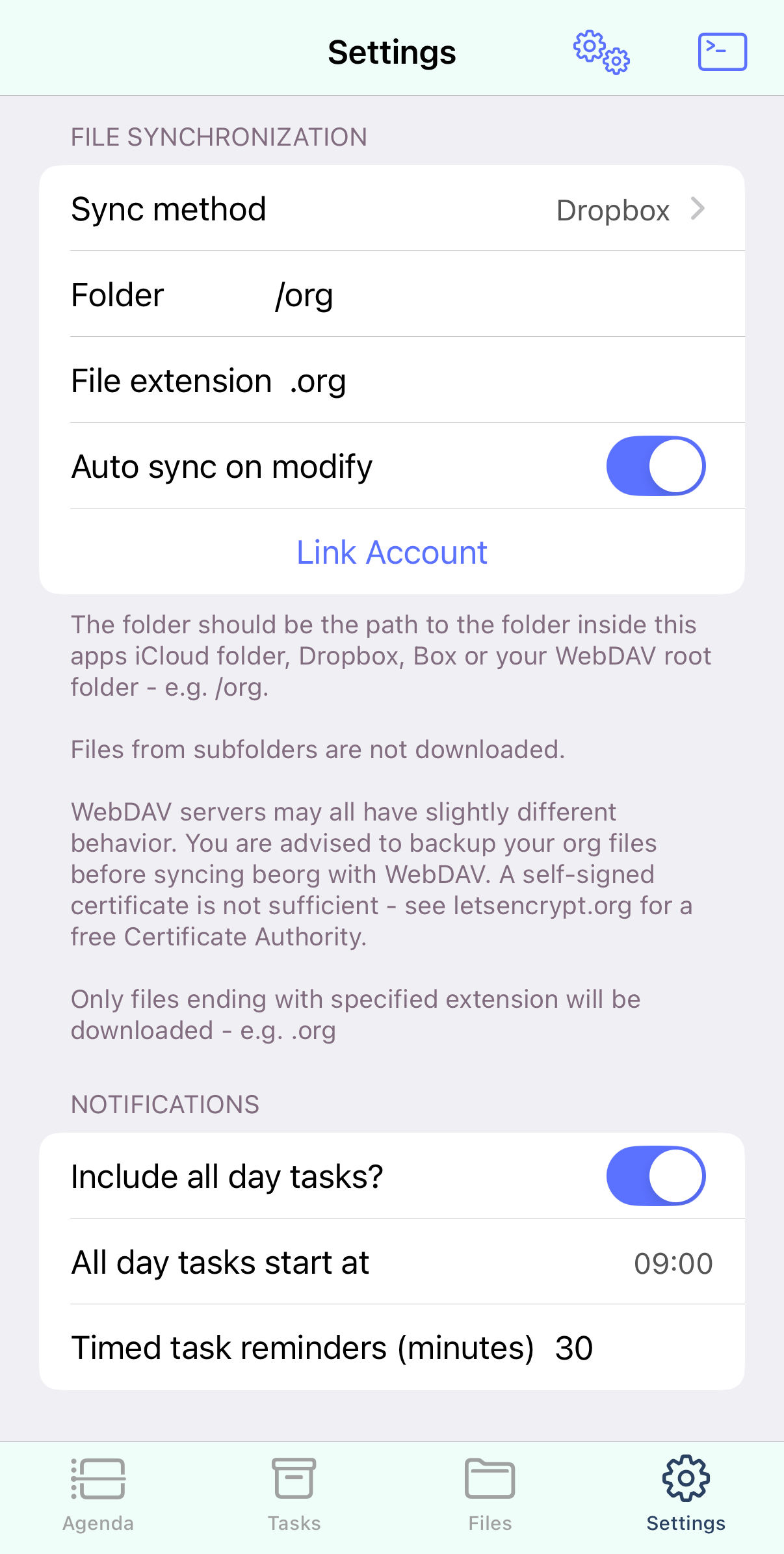
The most important section allows you to configure syncing your org files. You can sync files using either iCloud, Dropbox or WebDAV.
Notifications
Tasks in beorg can notify you to remind you to get them completed. Tasks with a date but no time will generate a notification at the same time everyday. Change “All day tasks start at” to the time you would like these notifications. Tasks with a time will generate the notification a certain number of minutes before the time set. Set “Timed task reminders” to how many minutes before the set time you would like these to fire.
Tap the notification when it appears to show the task in beorg
Calendar and reminders
beorg can show events from your calendars and reminders alongside your Org mode tasks. In Settings you can choose which calendars and reminders are included in beorg. This is useful if you have duplicates, such as multiple holiday calendars.
Tasks
By default there are two states for tasks - TODO and DONE. It can be helpful to have more states. For example a task which isn’t yet completed could be:
- Not yet started (TODO)
- In progress (INPROGRESS)
- Waiting on something (WAITING)
Similarly completed tasks may need different completion statuses. For example:
- The tasks was fully completed (DONE)
- The tasks was cancelled and doesn’t need to be done (CANCELED)